
Amazon QuickSight – Dashboard Exporting & Filtering
In Amazon QuickSight, you can export your dashboards as PDF, PowerPoint, or CSV files, and you can also filter the data in your dashboards to focus on specific subsets of information.
To export a dashboard
- Open the dashboard you want to export.
- Click on the “Export” button in the top right corner of the dashboard.
- From the dropdown menu, select “Generate PDF”.
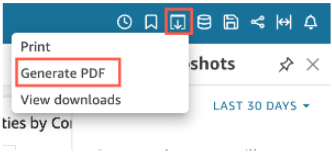
4. Select the desired format (PDF, PowerPoint, or CSV).
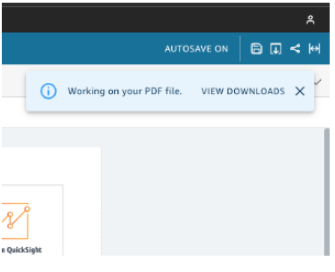
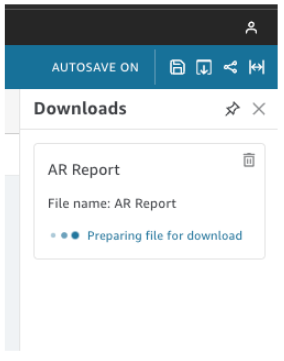
- When you select “Generate PDF,” QuickSight starts preparing the dashboard report for download. Click “View downloads” in the blue pop-up to open the Downloads pane on the right side.
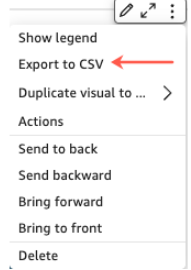
- Use the widget’s settings menu at the upper right to export data from an analysis or dashboard to a comma-separated value (CSV) file. You can only export data that currently appears in the selected item.
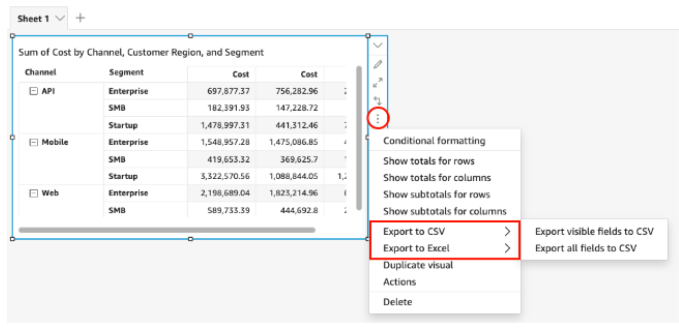
- You can export data from tables and pivot tables to a comma-separated value (CSV) file or Microsoft Excel file. It is possible to export only visible fields or all fields.
- Choose the menu at the upper-right of the visual to export only visible fields to a CSV or Excel file. Select Export to CSV or Export to Excel, and then select Export visible fields to CSV or Export visible fields to Excel.
- Choose the menu at the upper-right of the visual to export all fields to a CSV or Excel file. Select Export to CSV or Export to Excel, and then select Export all fields to CSV or Export all fields to Excel.
5. Follow the prompts to save the file to your local computer or device. There are two ways to download your report:
- Choose DOWNLOAD NOW in the green pop-up.
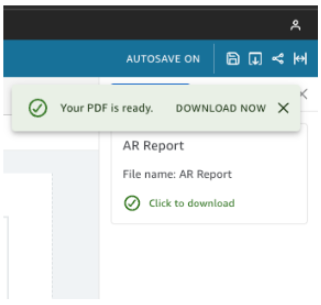
- Select the Export icon at the top right corner, and then click on “View downloads” to access and download all available reports that are ready for download.
To Print a dashboard
- Open the dashboard you want to print.
- Click on the “Export” button in the top right corner of the dashboard.
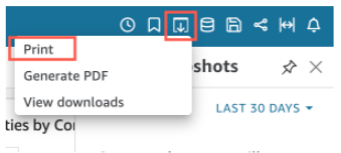
3. From the dropdown menu, select “Print”.
4. Follow the prompts to print the dashboard to your connected printer.
5. Choose GO TO PREVIEW.
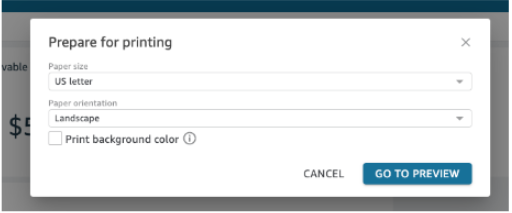
Note that when you print a dashboard, it may not look exactly the same as it does on the screen due to differences in the aspect ratio and resolution between the screen and the printer.