Amazon QuickSight – Exporting & Printing Reports
A paginated report can be viewed from a specific time point. You can print or download these snapshots, or reports, as PDFs or CSVs.
To export a paginated report report as a PDF
- From the paginated report, you want to export.
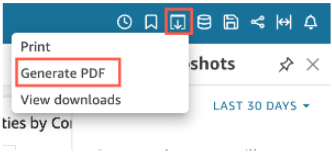
- The “Export” button is located in the top right corner of the dashboard.
- From the dropdown menu, select “Generate PDF”.
4. Select the desired format (PDF, PowerPoint, or CSV).
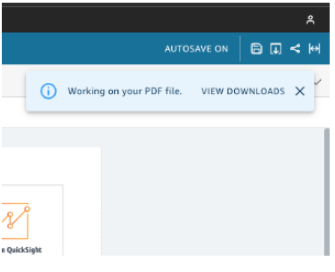
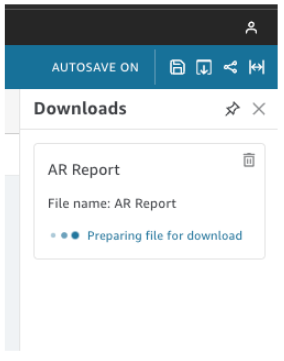
- QuickSight will begin preparing the dashboard report for download as soon as you choose to Generate PDF. Open the Downloads pane on the right by selecting View Downloads in the blue pop-up.
- A paginated report can be exported as a CSV file
- Choose Recent snapshots from the Scheduling icon at the top right of the report you want to export
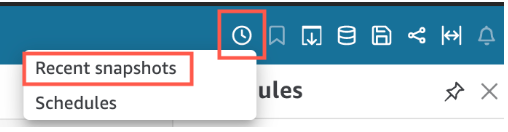
2. Snapshots are sorted from most recently generated to oldest in the Recent snapshots menu on the right. A snapshot can be stored for up to a year. Choose the download icon to the right of the report you want to download.
3. In the report pop-up, click the download icon next to the version you want to download. The report is available as a CSV or PDF file.
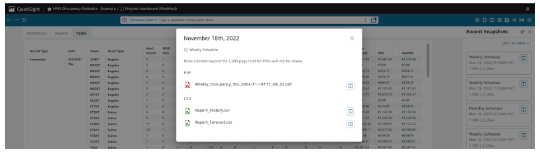
5. Follow the prompts to save the file to your local computer or device. There are two ways to download your report:
- Choose DOWNLOAD NOW in the green pop-up.
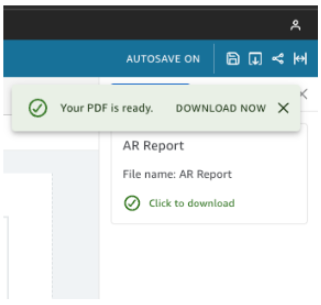
- View and download every report available for download by selecting the Export icon at the top right.
To Print a paginated report
- From the report you want to print.
- The “Export” button is located in the top right corner of the dashboard.
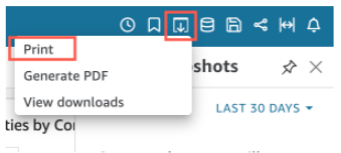
3. From the dropdown menu, select “Print”.
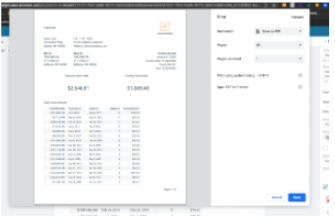
4. Follow the prompts to print the dashboard to your connected printer.
5. Choose GO TO PREVIEW.