

Amazon QuickSight – Updating Files in Dataset
To obtain the latest version of files, you can update the files in your dataset. The following file types can be updated:
- Comma-separated values (CSV) and tab-separated values (TSV) text files
- Extended and common log format files (ELF and CLF)
- Flat or semi-structured data files (JSON)
- Microsoft Excel (XLSX) files
Before updating a file, ensure the new file has the same fields in the same order as the original file in the dataset. An error occurs if there are discrepancies in the fields (columns) between the two files, and you must fix the discrepancies before updating again. Edit the new file to match the original. If you want to add new fields, append them after the original fields in the file. For instance, in a Microsoft Excel spreadsheet, append new fields to the right of the original fields.
To update a file in a dataset:
- In QuickSight, select Datasets at the left.
- On the Datasets page, choose the dataset you want to update and then click Edit dataset.
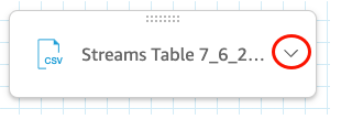
- On the data preparation page that opens, select the drop-down list for the file you want to update, and then choose Update file

4. On the Update file page that opens, choose Upload file and navigate to the file.
5. QuickSight scans the file.
6. If the file is a Microsoft Excel file, select the sheet you want on the Choose your sheet page that opens, and then choose Select.
7. Click Confirm file update on the following page. A preview of some of the sheet columns is displayed for your reference.
Upon successful file update, a message appears at the top right and the table preview updates.