
Power BI – Connect to CSV files
Power BI Desktop connects to a comma-separated value (CSV) files much like Excel workbooks. This article shows you how to connect to any CSV file you have access to.
Start by selecting Get Data > Text/CSV from the Home ribbon in Power BI Desktop.

From the Open dialog, select your CSV file.
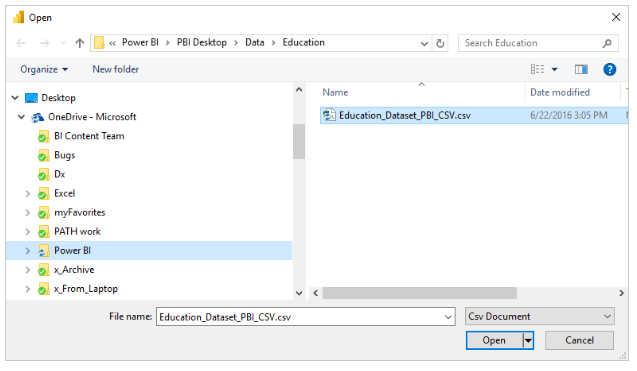
As soon as you select Open, Power BI Desktop accesses the file and determines certain file attributes, including the file origin, delimiter type, and how many rows should be used to detect the data types.
These attributes and options are available in the drop-down menus at the top of the CSV import dialog window. Using the drop-down selectors, you can change any of these detected settings manually.

Select Load to import the file into Power BI Desktop, or Edit to open Power Query Editor and further shape or transform the data before importing.
Upon loading the data into Power BI Desktop, you can see the table and its columns (called Fields in Power BI Desktop) along the right side of the Report view.
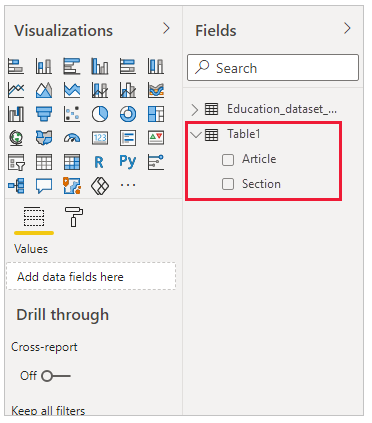
You can now see the data from your CSV file in Power BI Desktop.
In Power BI Desktop, you can use that data to create visualizations, and reports, or interact with other data sources, such as Excel workbooks, databases, or any other information.