
Power BI – Connect to PDF files
Supported Capabilities
- Import
Connect to a PDF file from Power Query Desktop
Power Query Desktop provides an option to connect to PDF files, enabling users to extract and transform data from them. Here’s how to connect to a PDF file in Power Query Desktop:
- Open Power Query Desktop and go to the “Home” tab.
- Click on the “From File” dropdown menu and select “From PDF.”
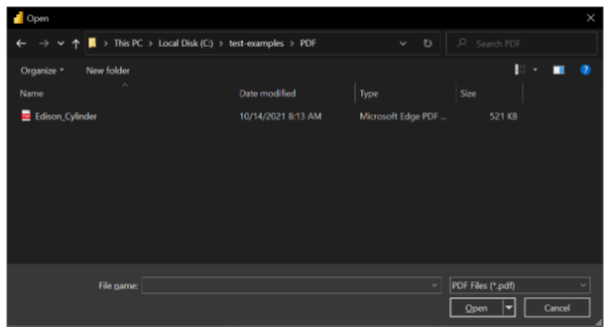
- Select the PDF file you want to connect to and click “Open.”
- If the PDF file is online, use the Web connector to connect to the file.
- Select the file information in Navigator, then select Load or Transform Data in Power Query Editor to load or transform the data.

- In the “Preview & Filter” window, you can select which pages of the PDF file to extract data from and specify any filters to apply. Click “OK” when you’re done.
- The PDF file will now be loaded into the Power Query Editor, where you can further transform and shape the data as needed.
Connect to a PDF file from Power Query Online
- In the connector selection, choose PDF.
- Provide either the file path or the URL to the PDF file in the PDF dialog box. In addition to uploading a local file, you can drag and drop the file or select Upload file (Preview).

- To access the PDF file, select an on-premises data gateway.
- If this is your first time accessing this PDF file, select the authentication type and sign in (if needed).
- Click Transform Data in Power Query Editor after selecting the file information in Navigator.

Note that Power Query Desktop’s PDF connector may not be able to extract all data from a PDF file, particularly if it contains complex tables or formatting. In such cases, manual adjustments or additional software may be required.