
Power BI – Connect to Project Online Data
Power BI Desktop allows you to connect to Project Online data.
To connect Power BI to Project Online data, follow these steps:
- Open Power BI Desktop and select “Get Data” from the Home tab.
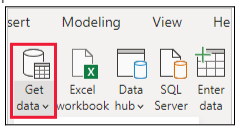
- In the “Get Data” window, select “OData Feed” and then select “Connect.”
- Enter the URL of your Project Online site and click “OK.”
- For example, if the address for your Project Web App is https://<tenantname>.sharepoint.com/sites/pwa, your OData Feed address should be https://<tenantname>.sharepoint.com/sites/pwa/_api/Projectdata.
- In the “Organizational Account” window, enter your credentials and click “Sign In.”
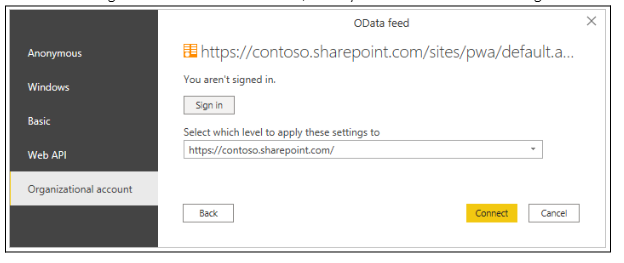
- To connect to the OData feed, your account must have at least Portfolio Viewer access to the Project Web App.
- Here, you can connect to tables and build a query.
- In the Navigator window, select the Project Online data you want to work with and click “Load.”
- Power BI will load the data and display it in a table format. You can now create visualizations and reports using the data.