
Power BI – Connecting to Data Source
Power BI Desktop allows you to connect to a wide range of data sources to create reports and dashboards. You can connect to data sources such as Excel spreadsheets, SQL Server databases, SharePoint lists, and cloud-based data sources like Azure SQL Database, Azure Data Lake Storage, and more.
Here’s how you can connect to a data source in Power BI Desktop
- Open Power BI Desktop and go to “Home” > “Get Data” in the ribbon.
- In the “Get Data” dialog, select the type of data source you want to connect to, such as “Excel” or “SQL Server”.
- The following example shows connecting to web data.
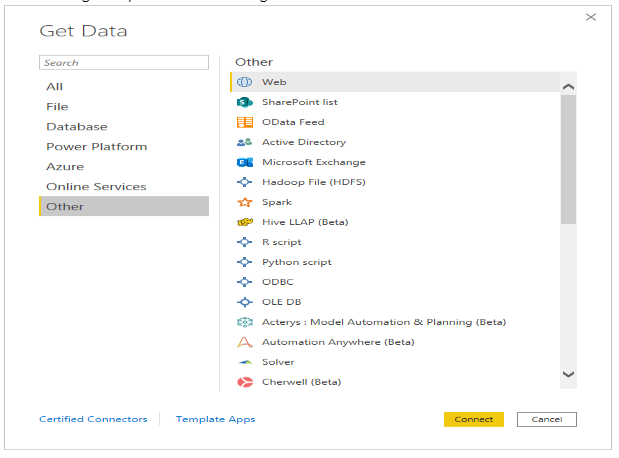
- Follow the prompts to specify the connection details for the data source, such as the file path or server name, and any required credentials.
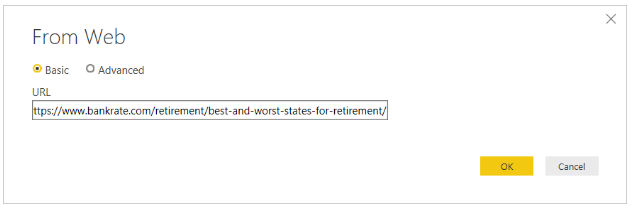
- Once you have specified the connection details, click “Connect” to connect to the data source.
- Power BI Desktop will load the data from the data source and present you with a preview of the data.
- In the “Preview” window, you can select the tables and columns you want to include in your report.
- Once you have selected the data you want to include, click “Load” to load the data into Power BI Desktop.
- The loaded data will appear in the “Fields” pane on the right side of the Power BI Desktop window. You can use the data to create your reports and dashboards.