

Power BI – Import Excel
Importing an Excel workbook into Power BI Desktop
- Power BI Desktop allows you to import Excel workbooks via File > Import > Power Query, Power Pivot, Power View.
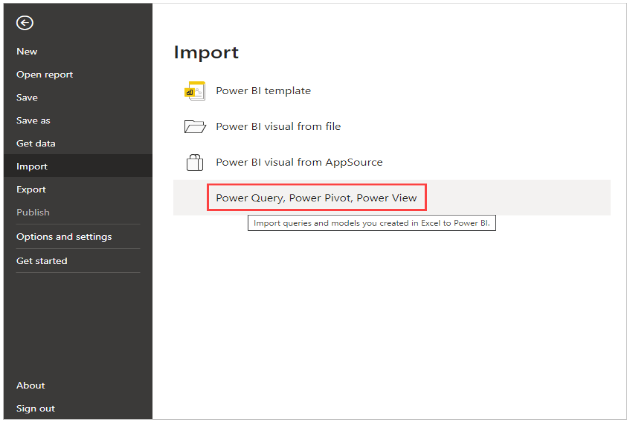

2. Select an Excel workbook to import from the Open window.
Although Power BI Desktop doesn’t limit the size or number of objects in a workbook, larger workbooks take longer to analyze and import.
3. Use the URL of the Excel file to load or import Excel files from shared OneDrive for Business folders or from Microsoft 365 group folders in Power BI Desktop.
4. Select Start from the import dialog box that appears.
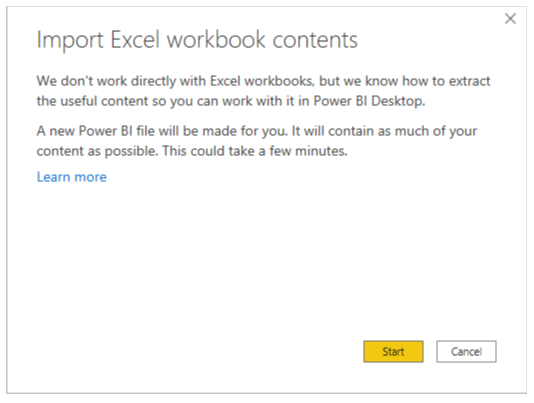

The workbook is analyzed by Power BI Desktop and converted into a Power BI Desktop file (.pbix). It is a one-time event. Using these steps, you can create a Power BI Desktop file that is independent of the original Excel file. It can be modified, saved, and shared without affecting the original workbook. The items that have been converted are described on a summary page after the import is complete.


5. You can now close the summary page.
The Excel workbook is imported into Power BI Desktop and a report is generated based on its contents.


As soon as the workbook is imported, you can continue working on the report. Using Power BI Desktop, you can create new visualizations, add data, or create new report pages.